
The Board Room projector allows you to share your computer screen using a wired connection (HDMI/USB-C) or wireless connection (ScreenBeam).
Follow the instructions below to connect your computer and confirm that audio is playing through the room's speakers.
Option 1: Wired Connection (HDMI/USB-C)
Turn on the projector using the Epson remote.
Locate the cable labeled Projector.
Connect the cable to your computer using HDMI or the attached USB-C adapter.
If your screen does not appear, press Source Search on the white remote until the projector displays HDMI 2.
Wait for your computer screen to appear on the projector.
Projector Input: HDMI 2
Note: The Source Search button cycles through available inputs. You may need to press it more than once to reach HDMI 2.
Option 2: Wireless Connection (ScreenBeam)
Turn on the projector using the white Epson remote.
Press Source Search until the projector displays HDMI 1.
Wait for the ScreenBeam connection screen to appear.
Follow the instructions below for your computer.
Mac
Control Center > Screen Mirroring > CC-BoardRoom-SB |
Windows
Windows + K > CC-BoardRoom-SB |
Confirm That Your Audio is Being Projected
Once your screen is projected, you need to make sure that you’re getting audio. The first thing to check is whether the volume on the PolyCom is up. You can adjust the volume with the black remote.
If you can hear the PolyCom (when you turn the volume up or down, it will make a small noise that indicates how loud it is) but not your computer, you need to check the audio output source on your computer.
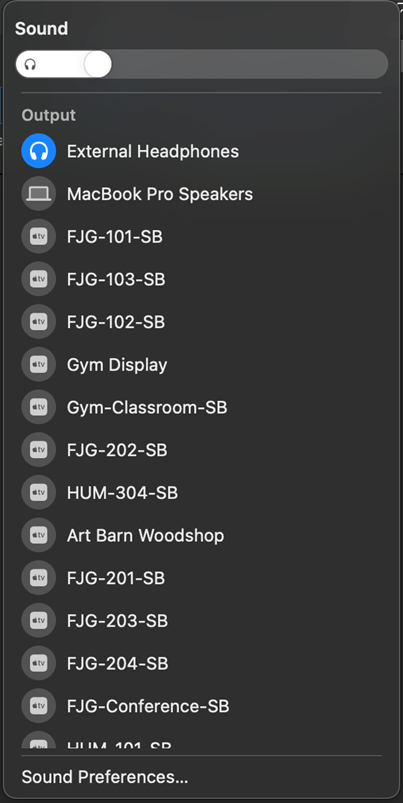
On Mac:
Open Control Center.
Select Sound.
Choose EPSON PJ as the audio output.
Test your audio.
Control Center > Sound > EPSON PJ
Windows
Click the speaker icon on the Windows taskbar.
Open the audio output selector next to the volume slider.
Select EPSON PJ from the available devices.
Test your audio.
Taskbar > Sound Output > EPSON PJ